
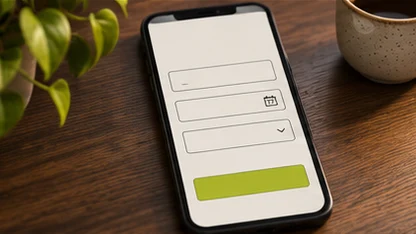
Match the form to the way you follow up. An email address, a name and a short explanation might be enough to begin. If a phone number is useful but optional, label it that way. Use labels that stay visible once people start typing so they can check what they entered.
Help someone recover from an error
Explain which field needs attention and how to fix it. An example format for a website address can help. Keep the other values when a submission fails, particularly any message someone spent time writing. Let people move through the form in a sensible order with the keyboard.
Confirm the message arrived
Give the visitor an obvious confirmation and make it available to screen readers. On the business side, test the recipient inbox and spam folder after each related update. Use a test message and check it on a phone, too. If you use spam protection, include it in the same test.
Follow the form through a mistake
Consider someone asking a repair shop for a quote on a phone. They write a long description, mistype one character in the email address, then press Send. If the form clears or the error appears far above the screen, a quick request becomes work for the customer. Keep the description, show an error near the email field, and tell the person what to correct.
- Check that every field has a visible label and that optional fields are easy to recognize.
- Try entering one invalid value. Confirm you can find the error and recover with the rest of the form intact.
- Complete the form with a keyboard and try it again with enlarged text. Verify that the confirmation is visible and announced.
Test the inbox too
A visitor sees the confirmation, but a small business needs evidence the enquiry reached a human. Send a marked test to the same address staff monitor, check spam, and reply. Run the test again after changing form tools, mail settings, or spam protection. Ask a coworker unfamiliar with the form to do the same test from another device.